macOS 13+ · Apple Silicon · 250 KB download · free & open source
Try it!
Safari9:41 AM
Terminal
~ %
Press & hold the right ⌘ key.
⌃control⌥option⌘command⌘command⌥option
Use the key on your keyboard or click and hold the button
above.
A closer look.
54 is the macOS keycode for the right ⌘
key — rarely used and mostly idle, making it the perfect
key to modify, and a logical name for this app.
One key, one app
Hold the right ⌘ key — no chord, no clicks, no
palette to search. Pure muscle memory.
Out and back
The same hold that summons your app sends you back —
even if it wasn't running yet.
Calm by design
A short, deliberate charge before it fires, so
switching never feels frantic.
Keeps your shortcuts
Quick taps and normal right-⌘ shortcuts pass straight
through — only a deliberate hold fires.
Tiny & invisible
A 250 KB download — no Dock icon, no menu bar
clutter. Starts at login and stays out of the way.
Easier on everyone
One forgiving key hold is genuinely simpler — a real
accessibility win.
Pick the one app you're always dropping into and back out of.
The pattern is always the same: summon, do the thing, dismiss.
Browser
Need to look something up mid-sentence? All your
browsing sessions come forward exactly as you left
them — no new window, no search box.
Email
Glance at a message and reply, then drop straight back
into focus — without getting sucked in and losing the
thread of deeper work.
Notes
A thought worth capturing never means hunting for the
right window — jot it down while it's still fresh.
Terminal
Run a quick install or git command mid-task, check a
deploy. The full terminal with every tab and session,
not a stripped-down drawer.
Assistant
Bind Claude or your AI chatbot of choice — ask a
question or paste a snippet, and come back with the
answer.
Shortcut
Save any Shortcut you've built as an app (File → Add
to Dock) and bind it — mute your mic, start a timer,
run whatever you've automated.
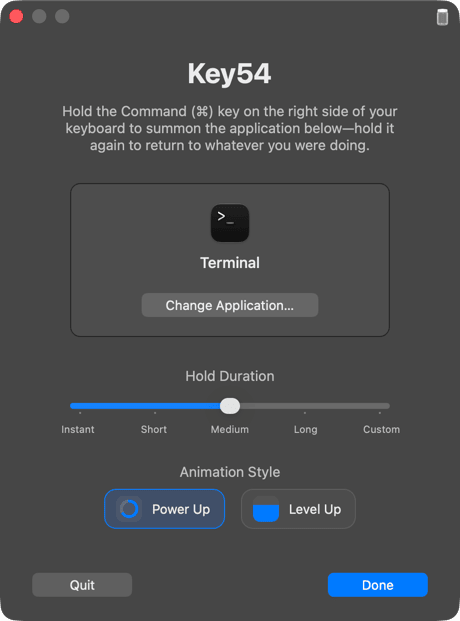
Key54 gives a single dedicated key to the app you most often
switch in and out of mid-task. It's made to work alongside your
favorite apps, not replace them.
On first launch, macOS asks for Accessibility access —
that's how Key54 watches the right ⌘ key. It's listen-only,
open source, and nothing ever leaves your Mac.
Free & open source.
No upsell, no account, no data collection — 100% free and
open source.
If Key54 earns a spot on your Mac…
 Key54
Key54